Chapter 6: Pretargeting Configuration
Audience: media buyers, campaign managers
Pretargeting configs are your primary lever for controlling what Google sends to your bidder. This chapter covers how to manage them safely in Cat-Scan.
What a pretargeting config controls
Each config is a set of rules that tells Google: "only send me bid requests that match these criteria." You get 10 configs per seat.
| Field | What it filters |
|---|---|
| State | Active (receiving traffic) or Suspended (paused). |
| Max QPS | Upper limit on queries per second this config accepts. |
| Geos (included) | Countries, regions, or cities to receive traffic from. |
| Geos (excluded) | Geographies to block even if they match inclusions. |
| Sizes (included) | Ad sizes to accept (e.g., 300x250, 728x90). |
| Formats | Creative types: VIDEO, DISPLAY_IMAGE, DISPLAY_HTML, NATIVE. |
| Platforms | Device types: DESKTOP, MOBILE_APP, MOBILE_WEB, CONNECTED_TV. |
| Publishers | Allow/deny lists for specific publisher domains or apps. |
Reading a config card
On the home page and in the settings, each config appears as a card showing its current state.
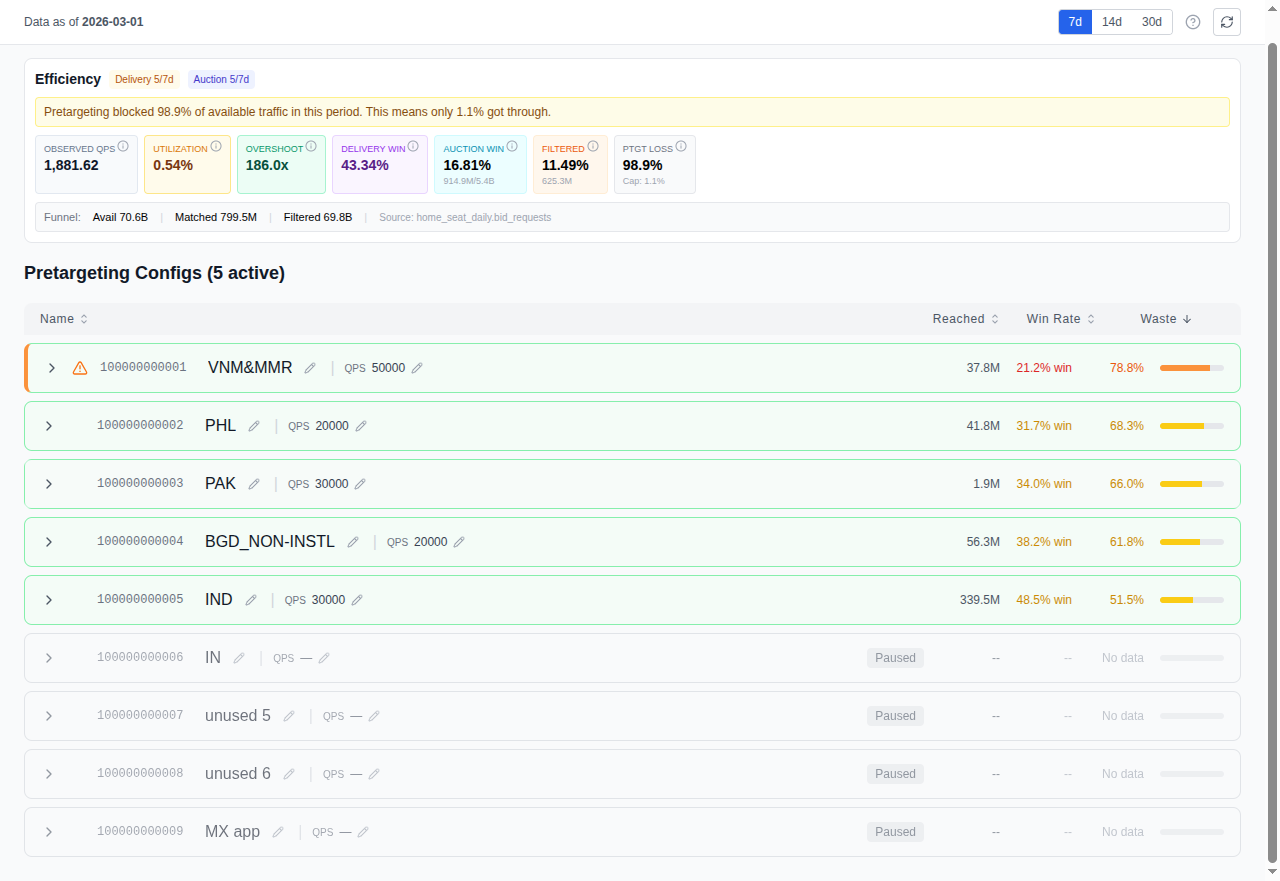
Key things to look at:
- Active + high max QPS + broad geos = this config is catching a lot of traffic. If it's also high-waste, it's your biggest optimization target.
- Suspended = not receiving traffic. Useful for staging changes before going live.
- Included sizes: (all) = accepting every ad size Google sends. For fixed-size display, this is almost certainly wasteful.
Making changes
The dry-run workflow
- Navigate to the config you want to change (home page or
/settings/system). - Select a field to modify (e.g., excluded geos, included sizes).
- Enter your new values.
- Click Preview (dry-run). Cat-Scan shows you exactly what will change without applying it.
- If the preview looks correct, click Apply.
- The change is recorded in the history with a timestamp and your identity.
Publisher allow/deny editor
For publisher-level blocking, Cat-Scan provides a dedicated editor per config. You can: - Search publishers by domain name - Block individual domains or apps - Allow specific domains that override broader blocks - Apply changes in bulk
This is significantly simpler than managing publishers through the Authorized Buyers UI.
Change history (/history)
Every pretargeting change is recorded in a timeline at /history.
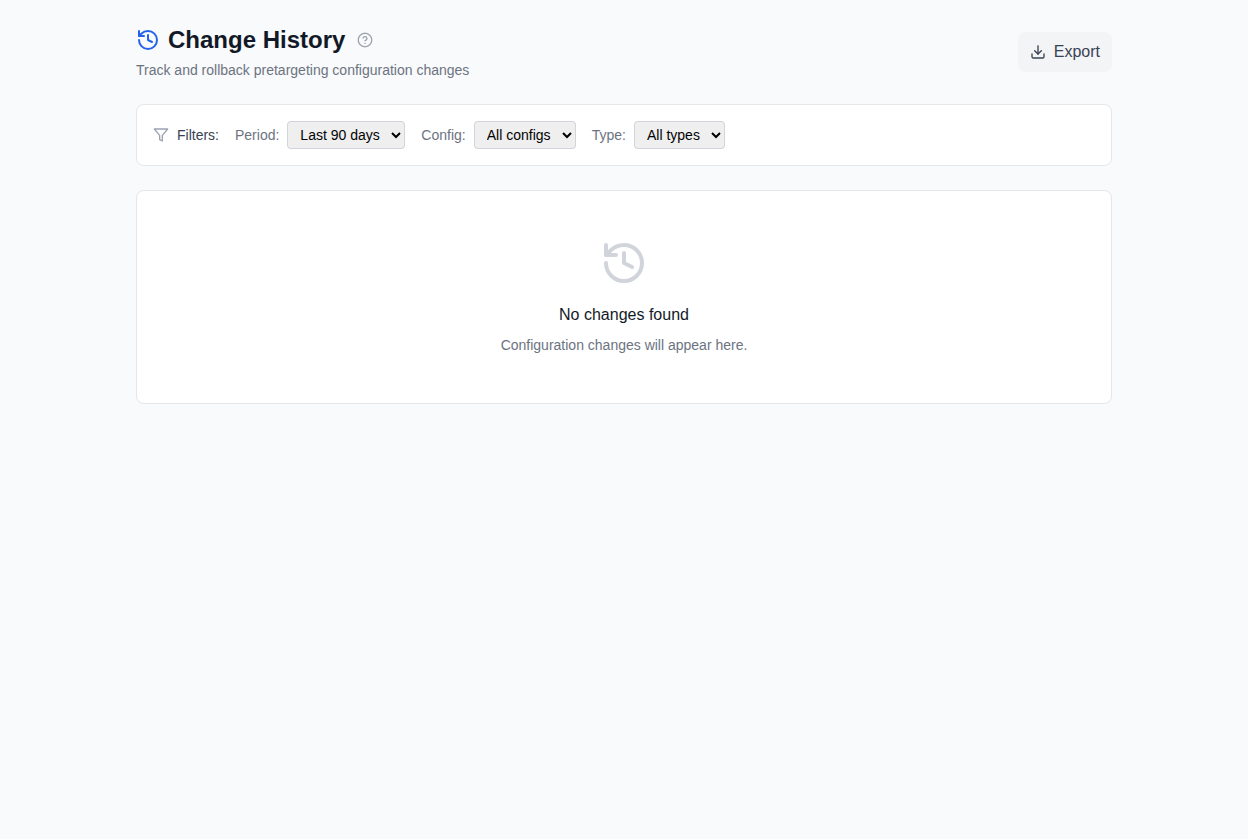
For each entry, you see: - When: timestamp of the change - Who: the user who made it - What: field name, old value, new value - Type: the kind of change (add, remove, update)
Rollback
If a change causes problems (e.g., waste increases, win rate drops), you can roll it back:
- Go to
/history. - Find the change you want to undo.
- Click Preview rollback. This shows a dry-run of reverting to the previous state.
- Optionally add a reason for the rollback.
- Click Confirm rollback.
The rollback itself is recorded as a new entry in the history, so you have a complete audit trail.
Related
- Analyzing Waste by Dimension: find what to change
- The Optimizer: automated suggestions for config changes
- For DevOps: config snapshots are stored as versioned entities. See Database Operations.